Appearance
Framer Basics
Key areas of the Framer editor you'll use to customize SYNTHEXA.
Pages Panel (Left Sidebar)
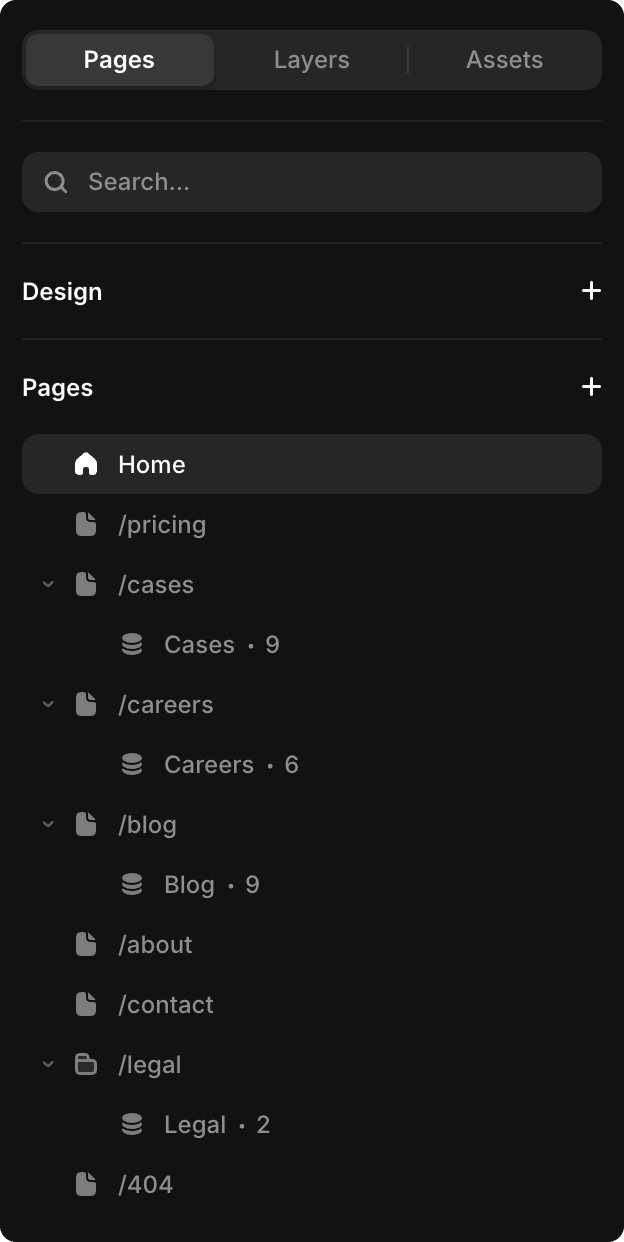
Displays all pages in your project. Use this to navigate between:
- Static pages (Homepage, About, Pricing, Contact, etc.)
- CMS-driven pages (Cases, Careers, Blog, Legal)
Click any page to open it for editing.
CMS Collections
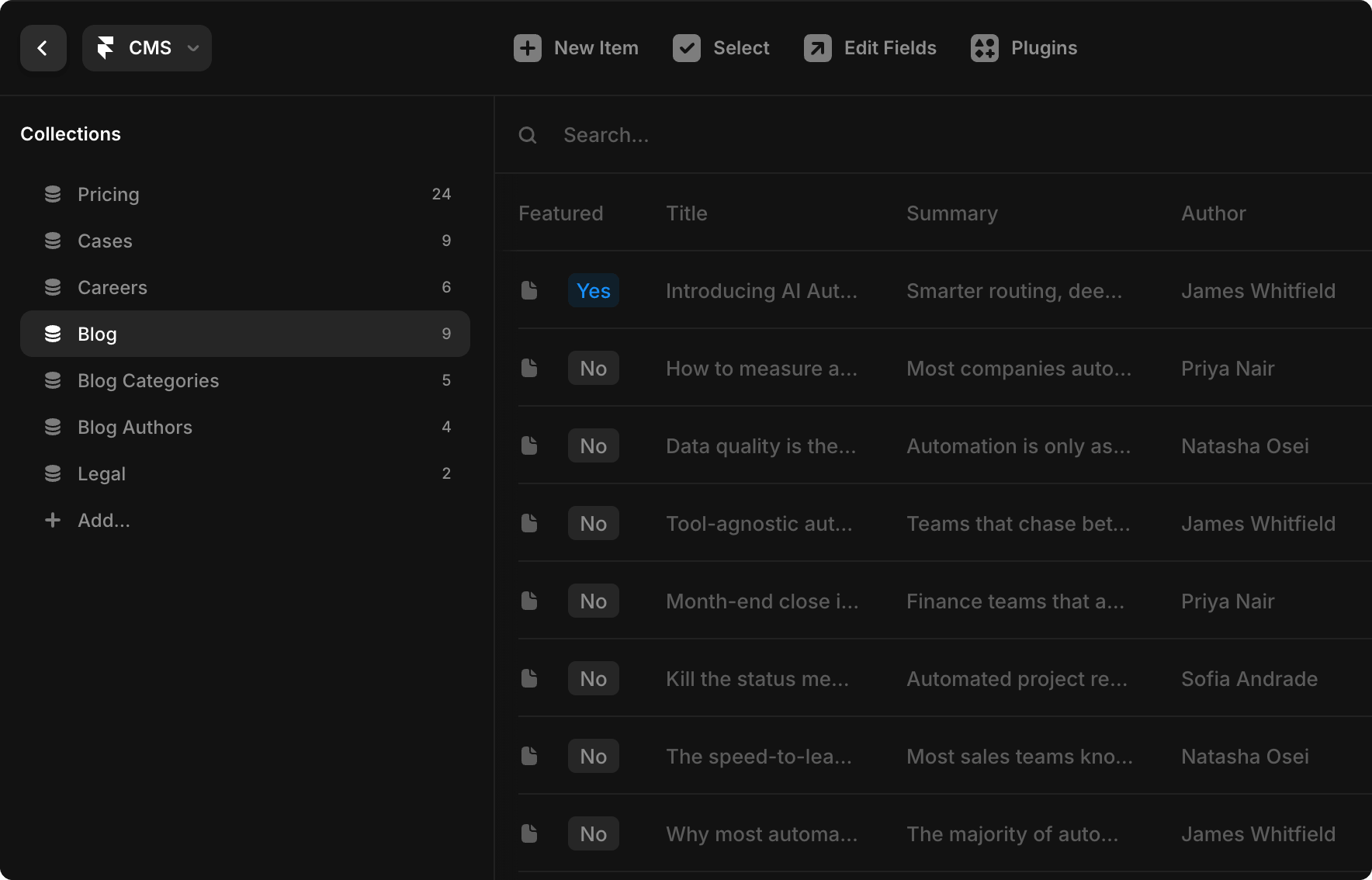
Manage dynamic content without touching the design:
- Create new entries for Blog, Cases, Careers, Pricing, Legal
- Edit existing items — all connected pages auto-update
- Changes are live after your next publish
TIP
Create Authors and Categories BEFORE Blog posts, since blog posts reference them.
Color Styles (Assets Panel)
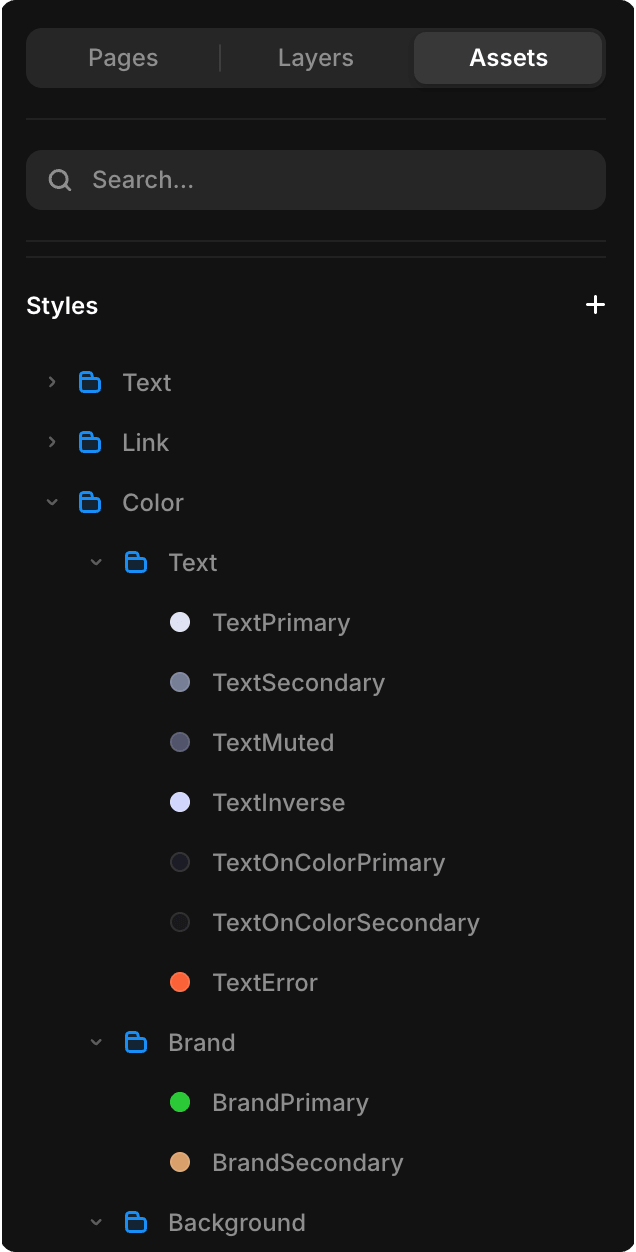
Design tokens that control colors across your entire site.
How to access:
- Click Assets in the left sidebar
- Select Styles > Color
- Find and click the color token you want to change
WARNING
Changing a color token updates EVERY element using it across the entire site instantly.
Text Styles (Assets Panel)
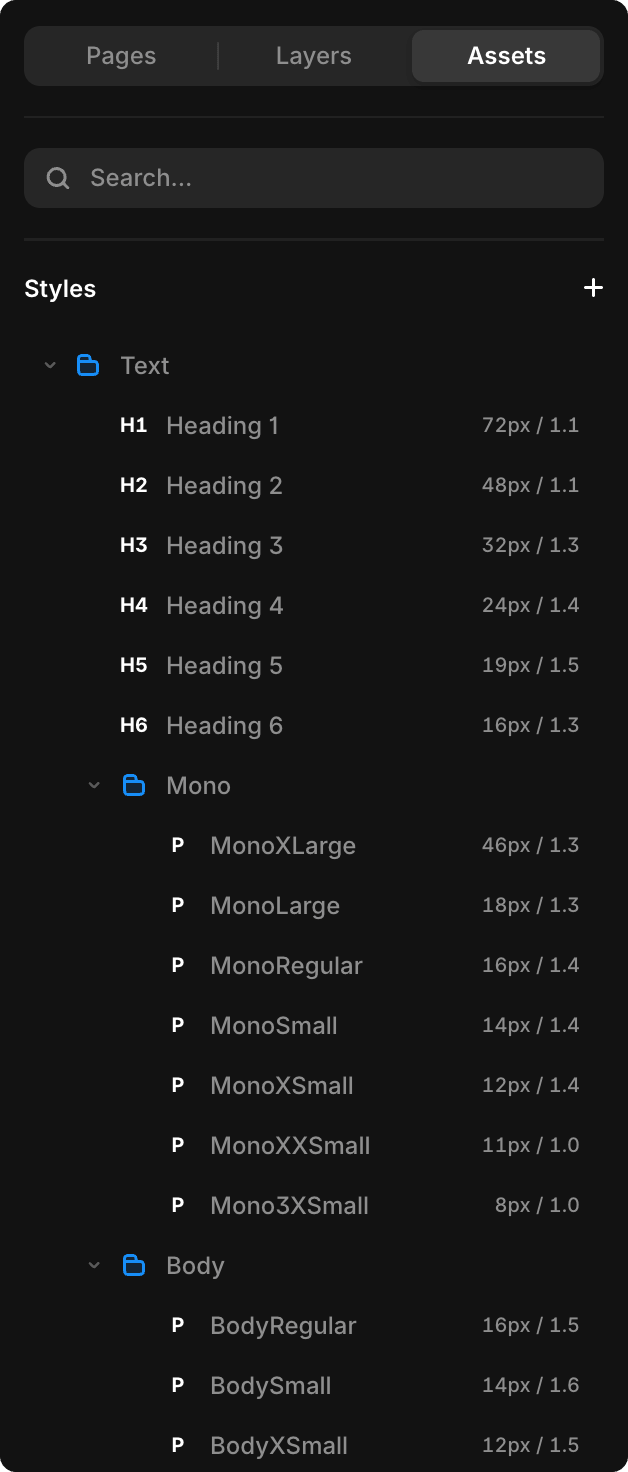
Global typography definitions. Update once, change everywhere.
/Heading 1–6— All headline sizes/Body— Standard body text/Mono/MonoRegular— Terminal/UI labels/Metrics
Components (Assets Panel)
Reusable design and code components. Click Assets → Components to browse:
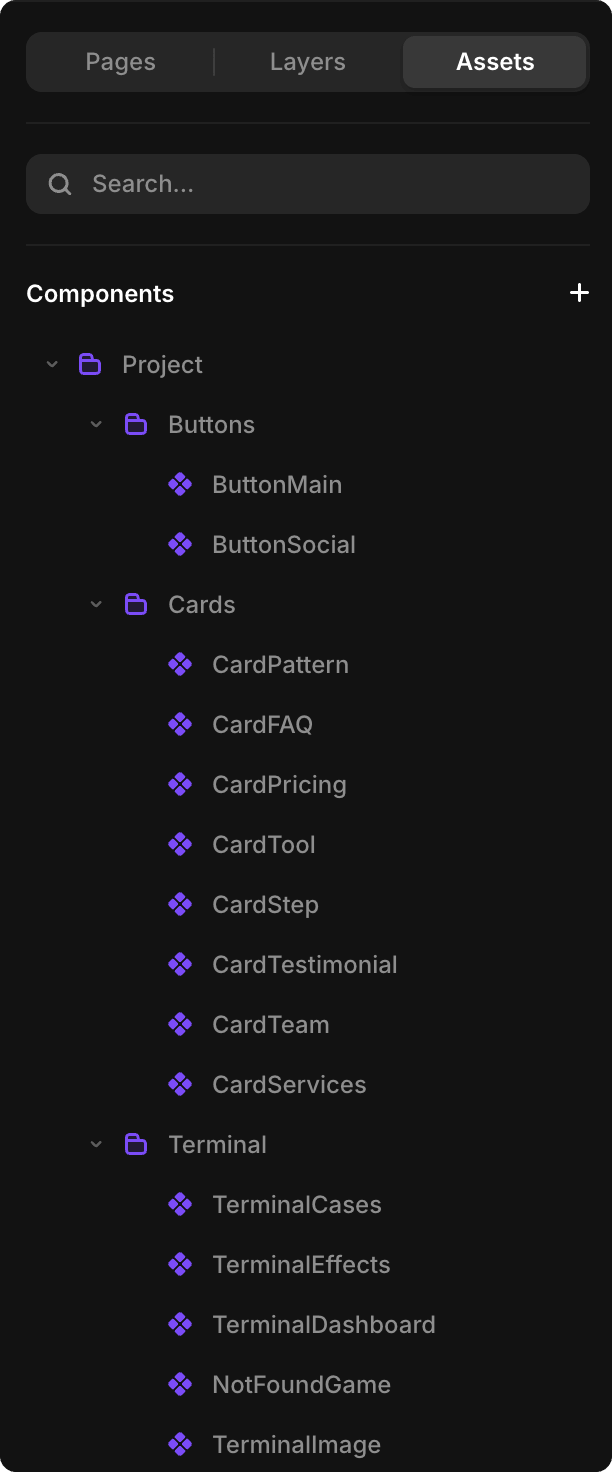
- Framer components — Fully editable design elements
- Code components — Interactive elements (TerminalDashboard, ROICalculator, NotFoundGame)
Drag a component onto the canvas to insert it.